TL;DR: when your ChatGPT usage runs out, the Codex desktop app on macOS locks the composer, even if model_provider points at your own API. In my case that API is a CLIProxyAPI (CPA) server that I run myself. It is a known bug that is still open on the openai/codex repo (#59175, #60545, #48816, #46298, #59376). The lock is a check inside the app’s interface, so a plugin cannot fix it. What worked for me: start the app with --remote-debugging-port and run a short Node script (about 60 lines, no packages) that changes rate_limit.allowed in the usage response before the app reads it. Your real quota does not change. Only the lock in the interface goes away.
You set model_provider in ~/.codex/config.toml to your own API. Your requests go to your own server, and they never touch the quota of the ChatGPT account the app is signed in with. Then that account hits its weekly limit, and the Codex desktop app on macOS refuses to send anything.
In my setup that server is CLIProxyAPI (CPA), an open-source proxy that I run on my own Docker host. It gives Codex an OpenAI-compatible API, and I point the app at it with a custom provider:
model_provider = "cpa"

[model_providers.cpa]
name = "cpa"
base_url = "https://your-cpa-host/v1"
wire_api = "responses"
experimental_bearer_token = "<your CPA API key>"
requires_openai_auth = true
CPA is only my example. As you will see below, the lock does not depend on which provider you use.
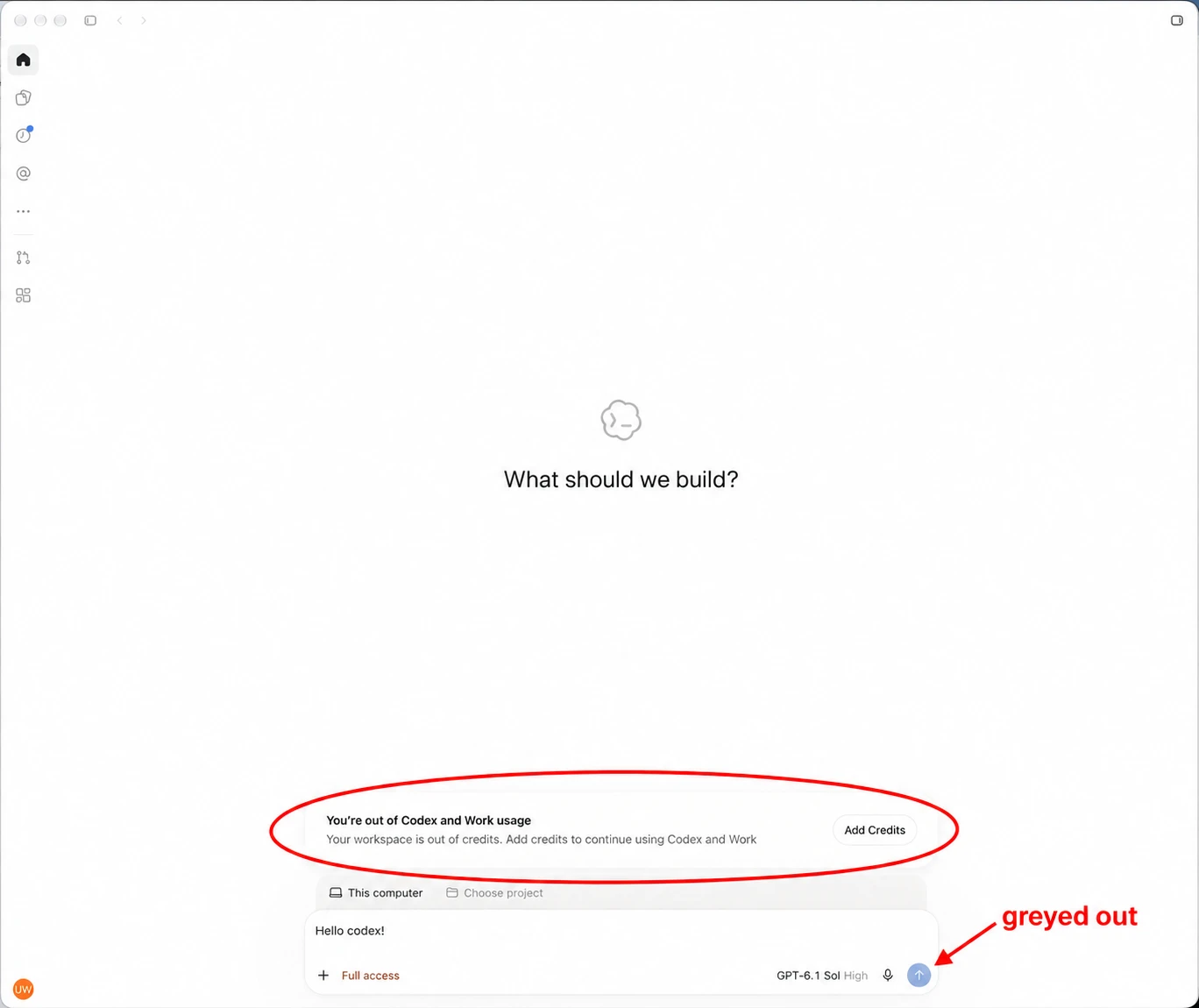
Here is what happened to me. The composer showed a banner like “You’re out of Codex and Work usage” with an Add Credits button, and the send button was disabled. The model I wanted to talk to was not the problem. The app had decided I was out of quota, and it did not care which provider I was using.
This post explains why that happens, what did not work, and the small script I use to fix it without modifying the app.
Version tested: ChatGPT / Codex desktop app 26.1117.31558 on macOS.
You Are Not the Only One
This is a known bug. These issues on the openai/codex repo describe the same thing, and they were all still open when I checked on November 20, 2026:
- #59175: the app blocks all prompts after the usage limit is reached, even when switching to a custom model provider
- #60545: a custom CPA provider is blocked by the ChatGPT quota, and the same gate is still present in a newer build
- #48816: the composer is disabled by the ChatGPT rate limit even when traffic goes to a custom provider
- #46298: models from other providers disappear and requests fail after the quota runs out
- #59376: quota used up on another device also blocks local work with a custom API
One of them (#48816) says the Codex CLI keeps working with the same config. In my case the lock was purely in the interface: once I changed what the app reads, it sent messages to my provider normally.
Why the App Locks You
The app asks ChatGPT for your usage with GET /wham/usage. The response includes a field like this:
rate_limit: { allowed: false, limit_reached: true }
When the app sees allowed: false, you have no credits left, and your account is signed in with ChatGPT, it switches the composer to a “usage limit” state. That state disables sending and shows the banner.
The important part is what the check does not read. It never looks at model_provider, base_url, or which model you picked. A custom provider such as CPA gets the same lock as the official one.
The banner itself comes from the server. The same response can carry fields such as rate_limit_upsell and rate_limit_reached_type, and the app turns them into the “Add Credits” message.
This also explains why a plugin or skill cannot fix it. As far as I can tell, plugins, skills, and MCP servers run on the agent side, after a message has been sent. The lock stops the message before that.
What I Tried First
Changing the config. One user reports that setting requires_openai_auth = false brings the send button back. I did not test this. My provider uses that setting, and another user notes that turning it off can hide account-based parts of the app.
Pointing the app at a local proxy. The app reads its ChatGPT backend address from the CODEX_API_BASE_URL environment variable, so I wrote a small proxy that changed allowed in the usage response. It did not work for three reasons:
- The app only attaches your login to a short list of hosts:
localhost(without a port),localhost:8000, and OpenAI or ChatGPT domains. My first try on127.0.0.1was refused with “Refusing to attach authentication to non-OpenAI URL”, and the app showed “Couldn’t load workspace settings”. - The bundled app server has its own address setting. Changing both made the traffic flow through, but a workspace account needs an HTTPS backend, so dozens of requests failed with “Workspace routing is unavailable”.
- The usage request never went through the proxy at all.
Patching the app. I have done this for another limit, and it works, but it means re-signing the app. The OpenAI signature is gone, and features that check it stop working. In my case that broke tool pipes the Schedule feature needs. I did not want to go back there.
The Approach That Worked: Change the Data Before the App Reads It
The desktop app is an Electron app. Its window is a Chromium page, and Chromium can be controlled through the Chrome DevTools Protocol. If you start the app with a debugging port, another program can connect and run a script inside each page before the app’s own code runs.
So the plan is simple. Wrap JSON.parse and Response.json() inside the page. When a parsed object looks like the usage response and says allowed: false, change it to true. The rest of the app never sees the lock.
Start the app with a debugging port:
open -a ChatGPT --args --remote-debugging-port=9339
The port listens on 127.0.0.1 only. Be aware of the trade-off: while the app is open, any program on your Mac can connect to that port and control the app. Programs running as you can already read ~/.codex/auth.json, so I accepted this, but it is a real cost.
There is also --remote-debugging-pipe, which uses no network port. I did not use it because the app would then run as a child of your script, and macOS may attribute permissions such as the microphone to the parent process instead of the app. I did not test that, so I kept the port.
The Script
Save this as unlock.mjs:
// unlock.mjs - keep the Codex desktop composer usable when the ChatGPT quota is used up.
// Usage: node unlock.mjs [port]      (the app must be started with --remote-debugging-port=<port>)
const port = process.argv[2] ?? 9339;

// Runs inside every page of the app, before the app's own code.
const HOOK = `(() => {
  if (window.__unlock) return;
  window.__unlock = true;
  const fix = (o) => {
    const r = o && o.rate_limit;
    if (r && typeof r === "object" && "plan_type" in o && r.allowed === false) {
      r.allowed = true;
      r.limit_reached = false;
      o.rate_limit_upsell = null;
      o.rate_limit_reached_type = null;
      if (o.spend_control) o.spend_control.reached = false;
    }
    return o;
  };
  const parse = JSON.parse;
  JSON.parse = function (text, reviver) { return fix(parse.call(this, text, reviver)); };
  const json = Response.prototype.json;
  Response.prototype.json = function () { return json.call(this).then(fix); };
})();`;

// Wait until the app is running with the debugging port.
async function endpoint() {
  for (;;) {
    try { return (await (await fetch(`http://127.0.0.1:${port}/json/version`)).json()).webSocketDebuggerUrl; }
    catch { await new Promise((r) => setTimeout(r, 2000)); }
  }
}

const ws = new WebSocket(await endpoint());
await new Promise((r) => (ws.onopen = r));
ws.onclose = () => process.exit(0); // the app quit; a supervisor (launchd) restarts us

let nextId = 0;
const pending = new Map();
const send = (method, params = {}, sessionId) =>
  new Promise((resolve) => {
    const id = ++nextId;
    pending.set(id, resolve);
    ws.send(JSON.stringify({ id, method, params, sessionId }));
  });

const done = new Set();
async function attach({ sessionId, targetInfo, waitingForDebugger }) {
  if (targetInfo.type === "page" && !done.has(targetInfo.targetId)) {
    done.add(targetInfo.targetId);
    await send("Page.enable", {}, sessionId);
    await send("Page.addScriptToEvaluateOnNewDocument", { source: HOOK }, sessionId); // future loads
    await send("Runtime.evaluate", { expression: HOOK }, sessionId);                  // page already open
    console.log("hooked", targetInfo.url);
  }
  if (waitingForDebugger) await send("Runtime.runIfWaitingForDebugger", {}, sessionId);
}

ws.onmessage = (e) => {
  const m = JSON.parse(e.data);
  if (m.id && pending.has(m.id)) { pending.get(m.id)(m.result); pending.delete(m.id); }
  else if (m.method === "Target.attachedToTarget") attach(m.params);
};

await send("Target.setAutoAttach", { autoAttach: true, waitForDebuggerOnStart: true, flatten: true });
const { targetInfos } = await send("Target.getTargets");
for (const t of targetInfos.filter((t) => t.type === "page")) {
  const { sessionId } = await send("Target.attachToTarget", { targetId: t.targetId, flatten: true });
  await attach({ sessionId, targetInfo: t, waitingForDebugger: false });
}
Then run it:
node unlock.mjs 9339
I tested it on Node 24. Node 22 and newer have WebSocket built in, so it should work there too. There are no packages to install.
Here is what the script does:
- It waits until the app’s debugging port answers.
- It connects to the browser and asks to be attached to every new page automatically, so windows that open later are covered.
- In each page it registers the hook for future page loads and also runs it right now for the page that is already open.
- When the app quits, the connection closes and the script exits.
If the page was already open with an older version of the hook, reload it with Cmd+R so the new one loads from the start.
What the Hook Changes, and What It Does Not
The hook only acts when the response has a plan_type, a rate_limit object, and allowed is false. Everything else passes through untouched, including usage responses that are already fine. In a test with made-up data, a response with a normal “upgrade” banner kept its banner.
When it does act, it flips allowed, clears limit_reached, and clears the banner fields. That is why the “Add Credits” message disappears too.
What it does not do is give you quota. Your ChatGPT credits are still empty. This only removes the lock in the interface, so you can keep working with a provider that does not use your ChatGPT quota. If you send a message to an OpenAI model or use a cloud feature, the server will still enforce your real limit. This also changes how your own copy of the app behaves, so use it at your own risk.
Make It Start Automatically
The script waits for the app and exits when the app quits, so it works well under a supervisor. On macOS that means two LaunchAgents and one change in Login Items.
1. Keep the script running. Create a LaunchAgent that runs node /path/to/unlock.mjs with RunAtLoad and KeepAlive set to true. Use the full path to node, because launchd does not load your shell profile. When the app quits, the script exits, and launchd starts it again to wait for the next launch.
2. Start the app with the port at login. Create a second LaunchAgent, with RunAtLoad, that runs this once:
pgrep -f "ChatGPT.app/Contents/MacOS/ChatGPT" || open -a ChatGPT --args --remote-debugging-port=9339
The command uses ||, so in the LaunchAgent run it through a shell: /bin/sh with the arguments -c and the command above.
3. Remove ChatGPT from Login Items. Otherwise macOS starts it first, without the flag, and the script has nothing to connect to.
4. Use a launcher instead of the Dock icon. The Dock icon starts the app without the port, and the lock comes back. I made a tiny AppleScript app that quits ChatGPT if it is running without the flag, then reopens it with the flag. The simplest version is one line:
osacompile -o "ChatGPT Unlocked.app" -e 'do shell script "open -a ChatGPT --args --remote-debugging-port=9339"'
If ChatGPT is already running, that simple version only brings it to the front. It does not restart it, so quit the app first.
Things That Can Break
- App updates. The hook depends on the field names in the usage response and on the response being parsed with
JSON.parseorResponse.json(). If a future update changes either one, the lock comes back. Add aconsole.loginsidefixand open the page’s console to see whether the hook still fires. - Starting without the flag. Any start from the Dock, Spotlight, or an automatic update restart has no port, so nothing is hooked.
- A short gap at startup. If the app fetches your usage before the script connects, the first response is not rewritten. In my setup (a longer version of this script, run by launchd) it attached about two seconds after the app started, and the first usage responses were already changed, but I cannot promise it every time. The next usage refresh fixes it.
- A full reboot. I tested quitting and reopening the app through the launcher, and the script reattached by itself. I did not test the whole chain after a reboot.
How to Undo It
Nothing in the app was modified, so undoing it is simple. Remove the two LaunchAgents and the launcher app, add ChatGPT back to Login Items, then quit ChatGPT and open it normally. Once OpenAI fixes the bug, you do not need any of this.
Summary
The Codex desktop app locks the composer when your ChatGPT usage response says allowed: false. It does not check which provider you use, so a custom provider such as CPA gets locked too.
A plugin cannot fix it, and a local proxy runs into the app’s rules about where it sends your login.
The fix that worked for me is a small script. Start the app with --remote-debugging-port, connect over the DevTools protocol, and rewrite the usage response inside the page before the app reads it. Your real quota does not change, and the server still enforces it for OpenAI’s own models.